
Fix Sound Issues Fast: ATEM Mini Audio Troubleshooting Guide
Audio problems are some of the most common—and frustrating—issues churches face when livestreaming. You might have everything connected correctly, yet no sound is coming through, or levels are uneven or distorted. The good news is that the Blackmagic Design ATEM Mini provides several tools to identify and fix audio issues once you know where to look.
Whether you’re using microphones, a soundboard, or the camera’s built-in audio, these steps will help you get your sound working again quickly.
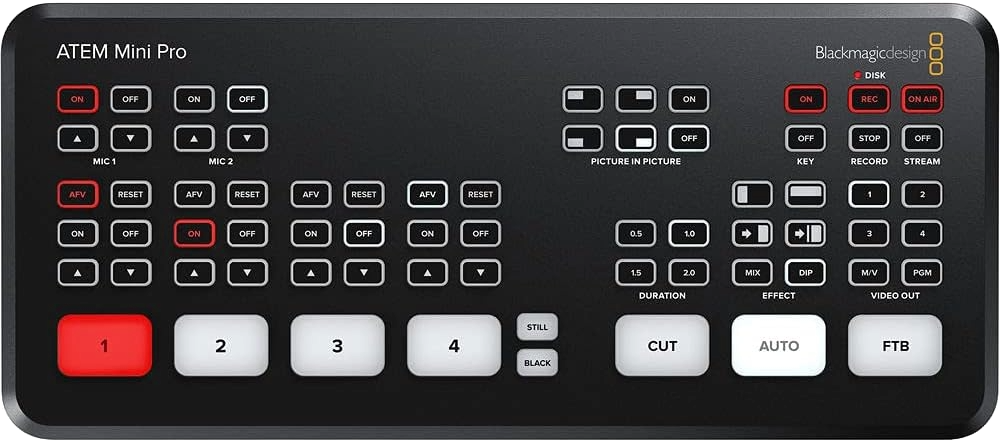
1. Start with the Basics
Before opening any software, begin with the physical connections.
- Cables: Make sure all HDMI and audio cables are firmly plugged in and undamaged. A loose or frayed cable can cause dropouts or distortion.
- Inputs: Confirm that you’re using the correct audio source. For example, if your microphones go through a soundboard that’s connected to HDMI 1, you may not be using the Mic 1 or Mic 2 jacks at all.
- Meters: Open the ATEM Software Control program on your computer and look at the audio meters (or use Multiview on Pro or Extreme models) to verify whether the switcher is receiving sound.
These simple checks fix most “no sound” problems in just a few minutes.
2. Check the ATEM Software Control
If all cables are connected properly, open ATEM Software Control and go to the Audio tab.
- Make sure the input you’re using is turned on and not muted.
- Check whether AFV (Audio Follow Video) is on or off.
- AFV ON: Audio from that camera plays only when its video is live.
- AFV OFF: Audio stays on continuously, no matter which camera is selected.
For most church livestreams, you’ll want AFV turned off, so the main audio feed remains consistent throughout the service.
3. Adjust Levels and Balance
In the same Audio tab, you can fine-tune your mix.
- Raise the fader so the meters peak close to 0 dB but don’t go into the red.
- Adjust the left/right balance if one side sounds louder.
- Mute unused channels to eliminate background noise or hum.
A clean, balanced signal is key to professional-sounding audio during your stream.
4. Test the Audio Output
If the meters show activity but you still don’t hear sound in your livestream or recording:
- Make sure your streaming or recording software (like OBS, Ecamm, or vMix) is using the ATEM Mini as the audio input.
- If you’re using an ATEM Mini Extreme, try connecting headphones to the built-in headphone jack to monitor sound directly. Other models don’t have this feature, so you’ll need to monitor through your computer or a display with audio output.
- Double-check your computer’s sound settings to ensure audio isn’t muted or routed to the wrong device.
5. Use Built-In Tools and Keep Firmware Updated
The ATEM Mini includes helpful tools for diagnosing sound problems:
- Meters in Software Control let you visually confirm if audio is present.
- The Fairlight audio mixer (included in all ATEM Mini models) allows for EQ, compression, and noise gating if your audio needs fine-tuning.
- Regularly update your firmware using the ATEM Setup Utility to prevent software or sync issues with new devices.
Final Thoughts
Most audio issues on the ATEM Mini come down to small setup mistakes or software settings. Take a step-by-step approach—check cables first, verify software inputs, then test your output device. Once configured, the ATEM Mini’s built-in tools and Fairlight mixer make it easy to deliver clear, consistent sound every Sunday—without needing an expert engineer.
Check out our related posts:
- How to Download Blackmagic ATEM Switchers Software (Step-by-Step Guide)
- The Ultimate ATEM HDMI Comparison: Mini Pro vs Pro ISO vs Extreme
This post may contain affiliate links. As an Amazon Associate, I earn from qualifying purchases.