
Downloading the Blackmagic ATEM Switchers Software is essential for unlocking the full potential of your ATEM hardware. Without it, you’re limited to basic switching functions, but with the software installed, you gain full control over transitions, picture-in-picture effects, audio mixing, and keying for overlays like lyrics or sermon titles. It also lets you save and recall presets, manage media, and fine-tune camera settings directly from your computer. In short, the ATEM Software Control transforms your switcher from a simple video hub into a powerful live production studio.
Learn more about ATEM Mini with our in-depth setup guide:
First, visit Blackmagic’s website here.
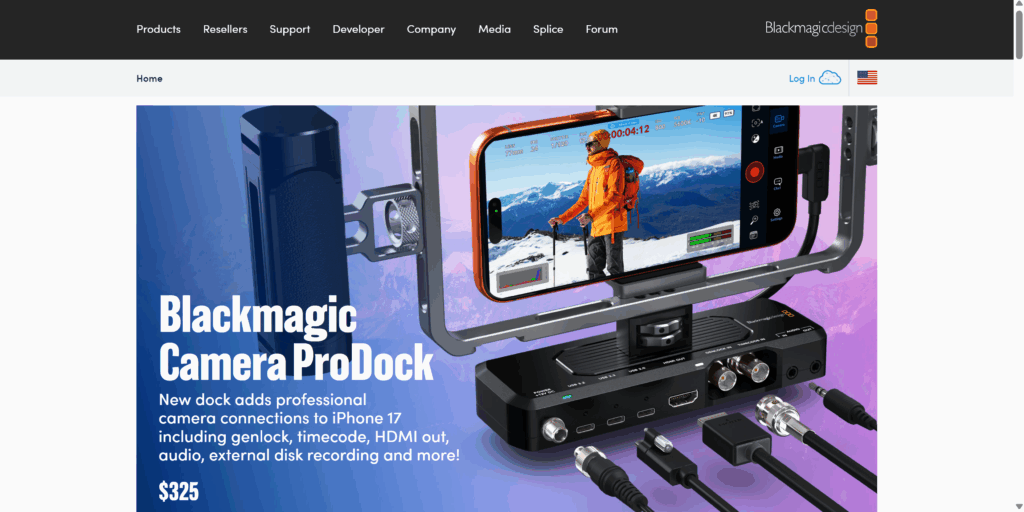
On the top of the page, select Support.
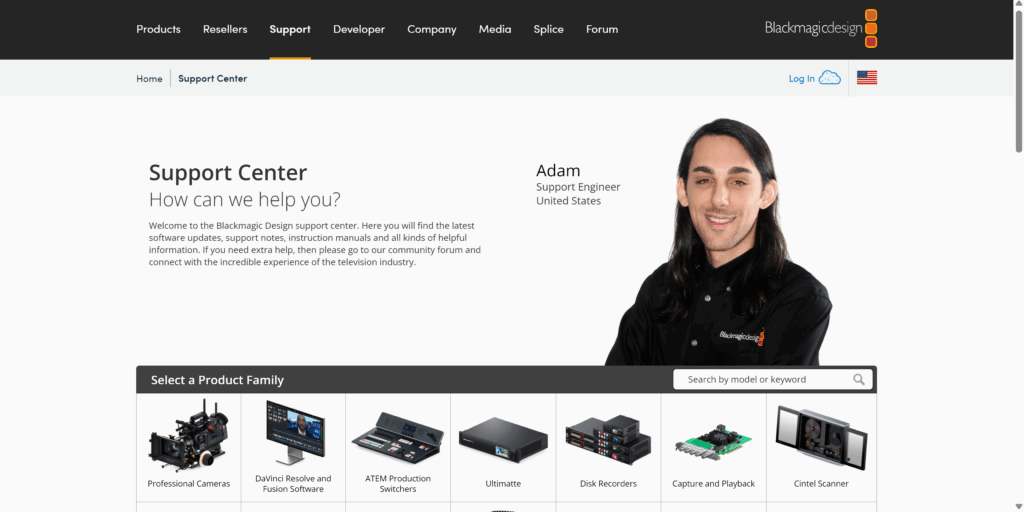
Scroll down until you are under the Select a Product Family menu. Select ATEM Production Switchers.
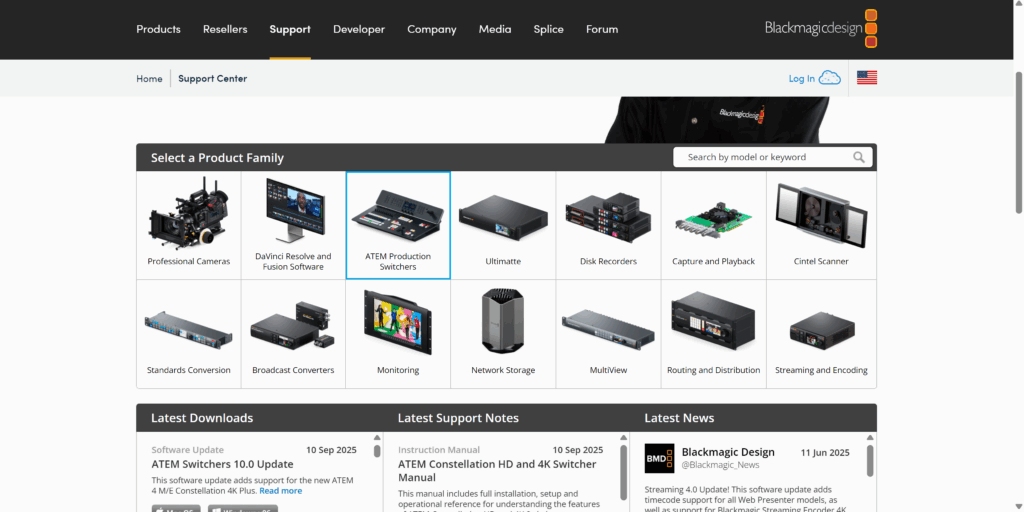
Scroll down a bit more until you see Latest Downloads on the left side.
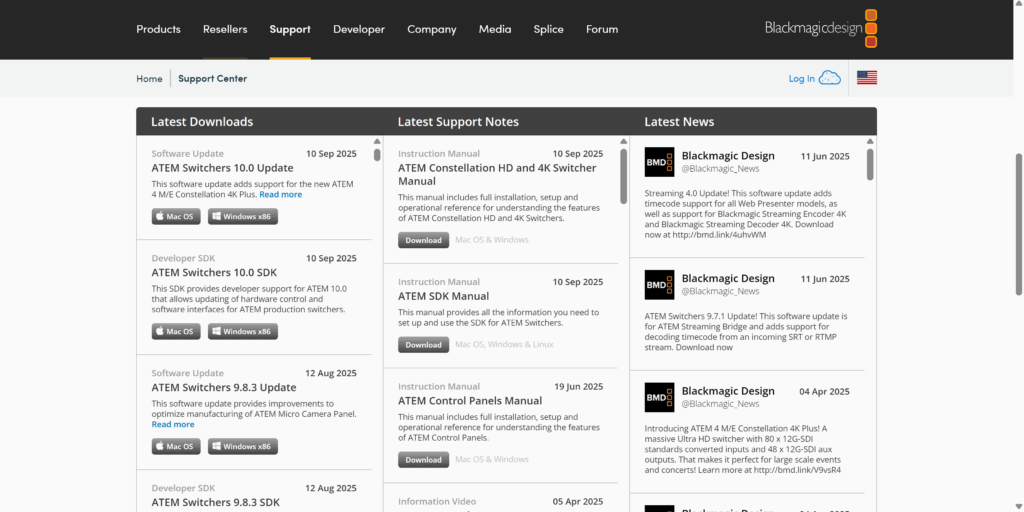
You will most likely want to download the Software Update on the top of the Latest Downloads. In the above image, it is the ATEM Switchers 10.0 Update. Select either Mac OS or Windows x86 depending on your operating system.
A pop-up will appear that will prompt you to enter your information. This is not necessary, and you can select Download Only on the bottom left of that screen.
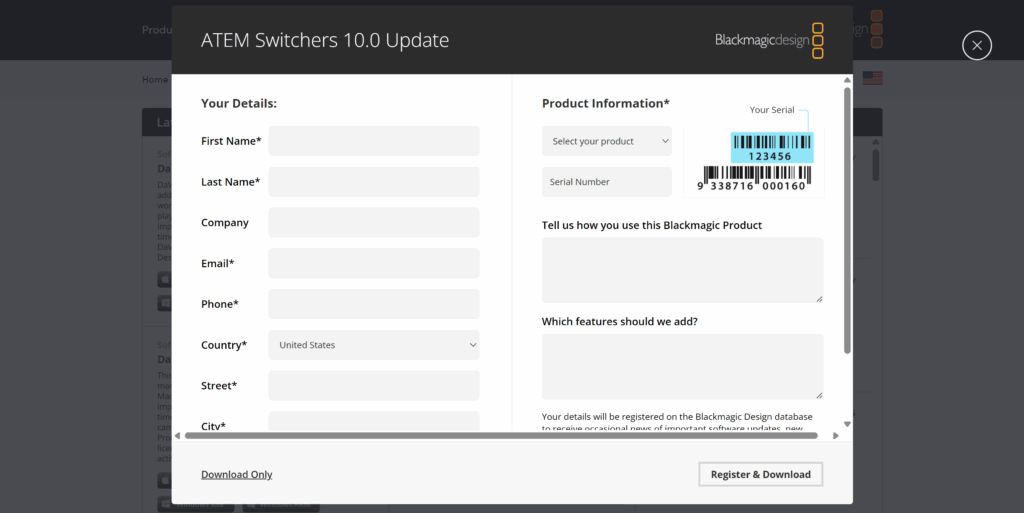
Your download will begin and you are ready to install Blackmagic’s ATEM Switcher software to make the most out of your Blackmagic ATEM Switcher!
Blackmagic offers a range of entry-level video switchers that are exceptionally well-suited for churches experiencing growth and seeking to improve their livestream or in-house video production. These models provide professional broadcast features in a compact, user-friendly design—making them ideal for volunteer-driven production teams. Below are several recommended options that deliver excellent performance, flexibility, and reliability for ministries looking to enhance the quality and consistency of their weekly services.
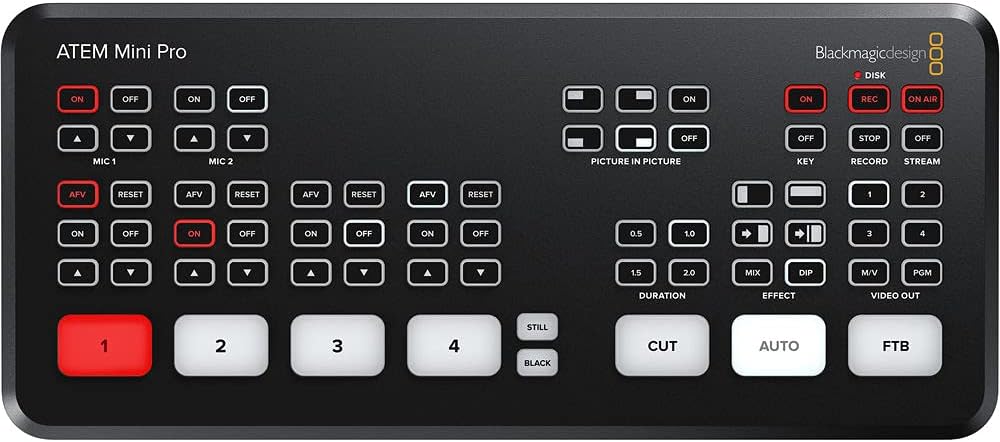
Blackmagic Design ATEM Mini Pro HDMI
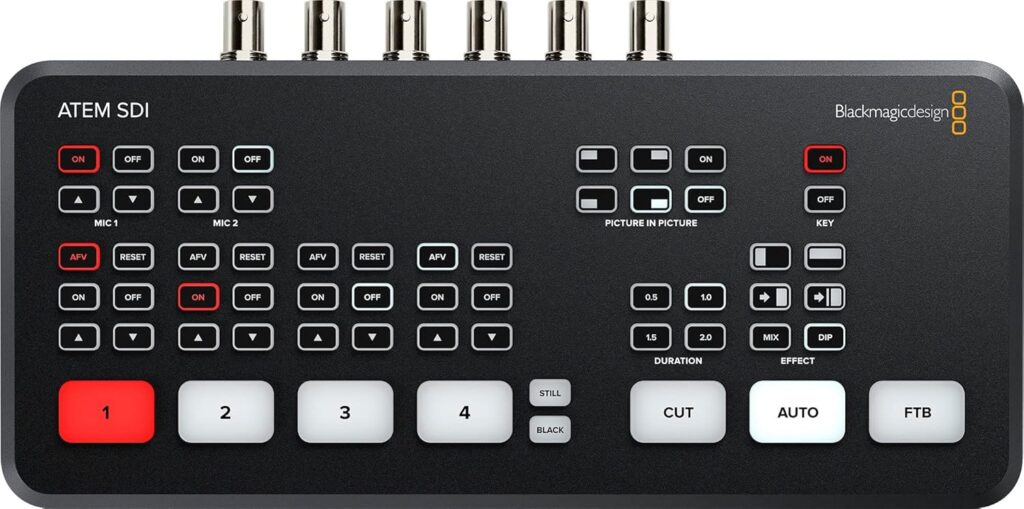
Blackmagic Design ATEM SDI
Check out our related posts:
- How to Connect a PTZ Camera to an ATEM Mini Using SDI Converters
- The Ultimate ATEM HDMI Comparison: Mini Pro vs Pro ISO vs Extreme
This post may contain affiliate links. As an Amazon Associate, I earn from qualifying purchases.