
When a church plugs SDI from their main switcher into a Blackmagic Video Assist and the monitor instantly shows “No Signal,” it’s frustrating—especially right before a Sunday service. The good news is this is a very common issue, and the fix is usually simple. Most churches run into this when the format coming out of the house switcher isn’t something the Video Assist can accept, or when the cabling or input settings aren’t quite right. This post will address the Blackmagic Video Assist no signal issues.
Below are the three most common fixes, starting with the one that solves the problem for most ministries.
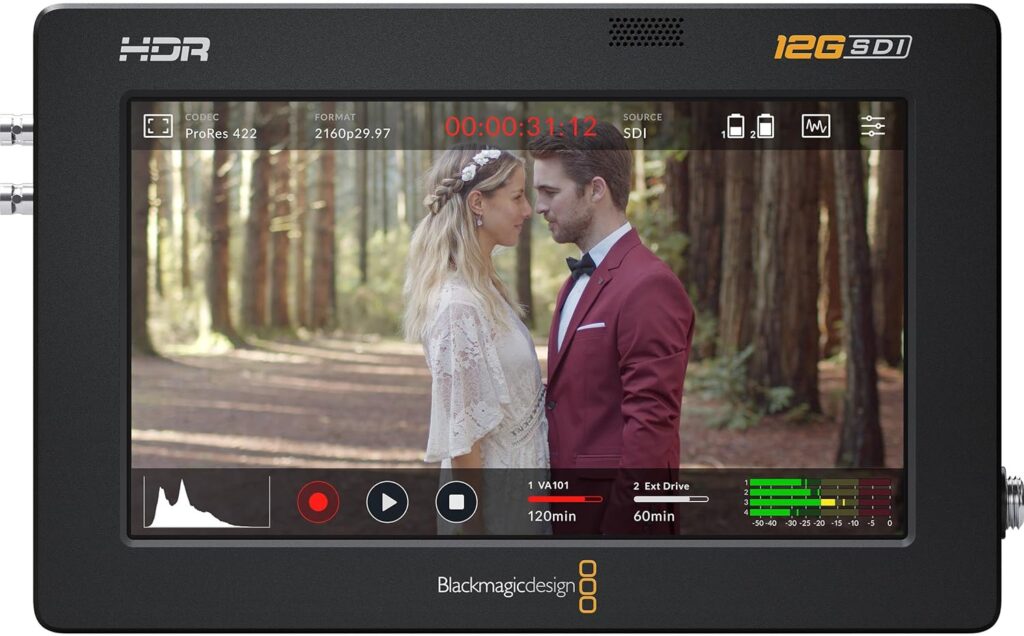
1. Match the SDI Format (Most Common Fix)
The #1 reason the Video Assist shows “No Signal” is because the SDI output format from your house switcher doesn’t match what the Video Assist can display.
Your switcher may be outputting a format such as:
- 1080i instead of 1080p
- 23.98 / 24 fps, which some models don’t support
- 50 fps, used in European/Australian equipment
- 4K output on a Video Assist model that only accepts HD
- Dual-link or Level A/B signals the unit can’t interpret
If the Video Assist cannot interpret the exact SDI standard, it simply shows “No Signal.”
Fix:
- Set your switcher to a supported format for your exact Video Assist model
- Most commonly 1080p30 or 1080p60
- Ensure the output is not set to interlaced unless your Video Assist supports it
- Disconnect and reconnect the SDI cable after changing the format
Tip: Blackmagic publishes supported formats for each Video Assist model—matching your switcher to that list fixes this for most churches.
2. Check the SDI Cable and Signal Path
If your format matches and you still see “No Signal,” the next most common cause is a problem with the cable or the routing path.
Common culprits include:
- A damaged SDI cable
- A cable run that is too long for the cable grade
- A bad SDI output on the house switcher
- Using adapters, converters, or patch panels that interrupt the signal
Fix:
- Test a known-good SDI cable—preferably short and direct
- Verify the switcher’s SDI output is actually active
- Plug in a camera directly to the Video Assist
- Avoid converters while testing—go direct from switcher to Video Assist
- Make sure the Video Assist is on the correct input (SDI, not HDMI)
If a camera works but the switcher doesn’t, the issue is not the Video Assist—it’s the SDI output or cabling.
3. Check Video Assist Input Settings & Firmware
Sometimes the Video Assist is set to expect HDMI instead of SDI, or the firmware is outdated and struggling with signal detection.
Fix:
- In the Video Assist menu, set the input to:
- SDI or Auto
- Power-cycle the device
- Update the firmware to the latest version
- After updating, perform a full restart
- If needed, try a factory reset
Firmware updates occasionally improve SDI compatibility, so staying current helps prevent this issue from returning.
Quick Troubleshooting Checklist
✔ Set the switcher to 1080p30 or 1080p60 — the most compatible formats
✔ Try a known-good SDI cable
✔ Eliminate converters while testing (go direct SDI → Video Assist)
✔ Confirm Video Assist is set to SDI input
✔ Test with another SDI source
✔ Update firmware if needed
Final Thoughts
The “No Signal” message on a Blackmagic Video Assist almost always comes down to signal format, cabling, or input settings. Once those are fixed, the monitor is extremely reliable—making it a great choice for sermon backups, IMAG monitoring, or reviewing camera feeds during worship.
A few minutes of testing during the week can save your team a lot of stress on Sunday morning.
Check out our related posts:
- Why Does My Blackmagic ATEM Mini Cut to Black When Switching Inputs During Worship?
- HyperDeck Recorders for Churches: How to Capture High-Quality Backups Every Sunday
This post may contain affiliate links. As an Amazon Associate, I earn from qualifying purchases.